
Is Kaggle Notebooks free?
Hosted data-science notebooks with a recurring weekly GPU allowance.
Current free offer summary
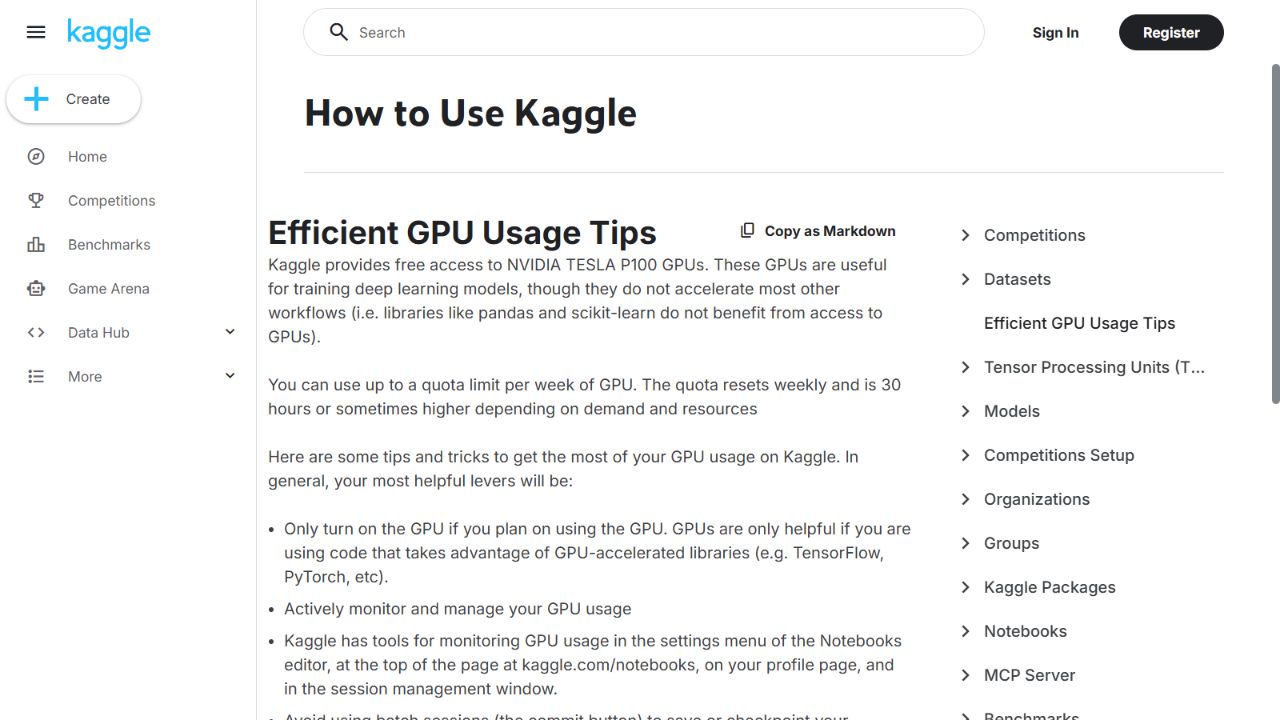
Kaggle documents a GPU quota of 30 hours per week, sometimes higher depending on demand and available resources; the quota resets weekly.
What Kaggle Notebooks does
Kaggle Notebooks are hosted Jupyter environments for machine learning, data analysis, competitions, and reproducible experiments. Kaggle documents a weekly GPU quota and provides tools for monitoring sessions and remaining usage.
- Jupyter notebooks
- Free GPU sessions
- Datasets
- Competitions
- Notebook API
Best for
- ✓ Machine-learning notebooks
- ✓ Dataset experiments
- ✓ GPU model training
Important limits
- • The weekly GPU allowance can change with demand and resources
- • Stop GPU sessions when finished; closing the browser does not immediately stop compute
- • GPU and TPU availability is managed by Kaggle and can involve queues
- • Documented CPU/GPU executions have a 12-hour maximum; TPU executions have a 9-hour maximum
- • GPU access requires phone verification; the cited staff statement is historical, not a fresh account test
FreeAIList verdict
A practical free notebook option for structured weekly experiments, especially when Kaggle datasets and competitions are already part of the workflow.
About this practical guide
Sources checked Oct 16, 2026
We created a separate private notebook in an existing signed-in Kaggle account on October 16, 2026. The Python example below ran on CPU, printed average = 5.0 and wrote a text file. We saved one Quick Save version with output and stopped its draft session. We inspected the accelerator menu but did not run a GPU, train an AI model, test a fresh signup or test phone verification. Original captures show this account’s interface. Four images are AI-enhanced illustrations for readability, checked against those captures; each links to its original screenshot. Numbered pointer overlays are added reading aids. The guide check does not replace the listing’s full verification date.
Compare free compute options1. Create a notebook for your first test
Open Kaggle’s Code page, sign in and select New Notebook. Give it a name you will recognize, such as ‘My first Kaggle notebook’. A notebook combines code cells, their results and written notes in your browser. Kaggle runs the code on its remote machine; installing Python on your laptop is unnecessary for this exercise.
Use a new notebook rather than editing somebody else’s project. Keep it private while learning, and check sharing before adding files. This example needs no uploads, datasets, API keys or paid plan. The walkthrough uses a desktop layout; menus may move on a narrower screen.
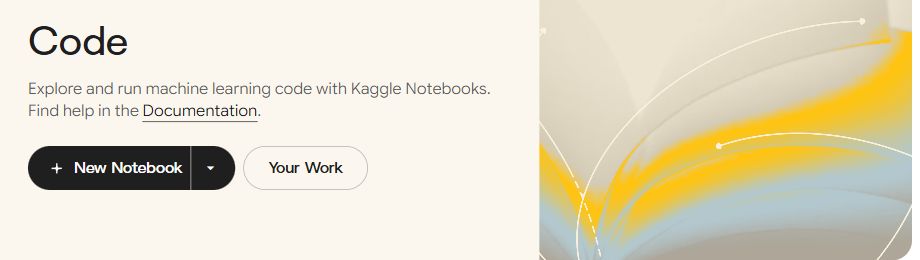
Kaggle Code page, captured October 16. Start with New Notebook.
- Select New Notebook.
2. Choose CPU first; find GPU when you need it
In the editor, open Settings, then Accelerator. Leave None selected for the starter code below: None means no GPU or TPU accelerator, so ordinary Python still runs on CPU. Our menu offered GPU T4 x2 and TPU v5e-8. Those are observed choices, not a promise of the same hardware or immediate availability for every account.
Choose a GPU later for code that actually uses it, such as an appropriately configured PyTorch or TensorFlow workload. Selecting a GPU does not automatically make every Python program faster. Avoid using GPU time for editing text, preparing files or this small arithmetic example.
Kaggle’s efficient-usage documentation describes a weekly GPU quota of 30 hours, sometimes higher depending on demand and resources. Check your own current quota and eligibility before planning a long run. The documentation and interface can show different hardware generations; use the actual selectable option for your run.
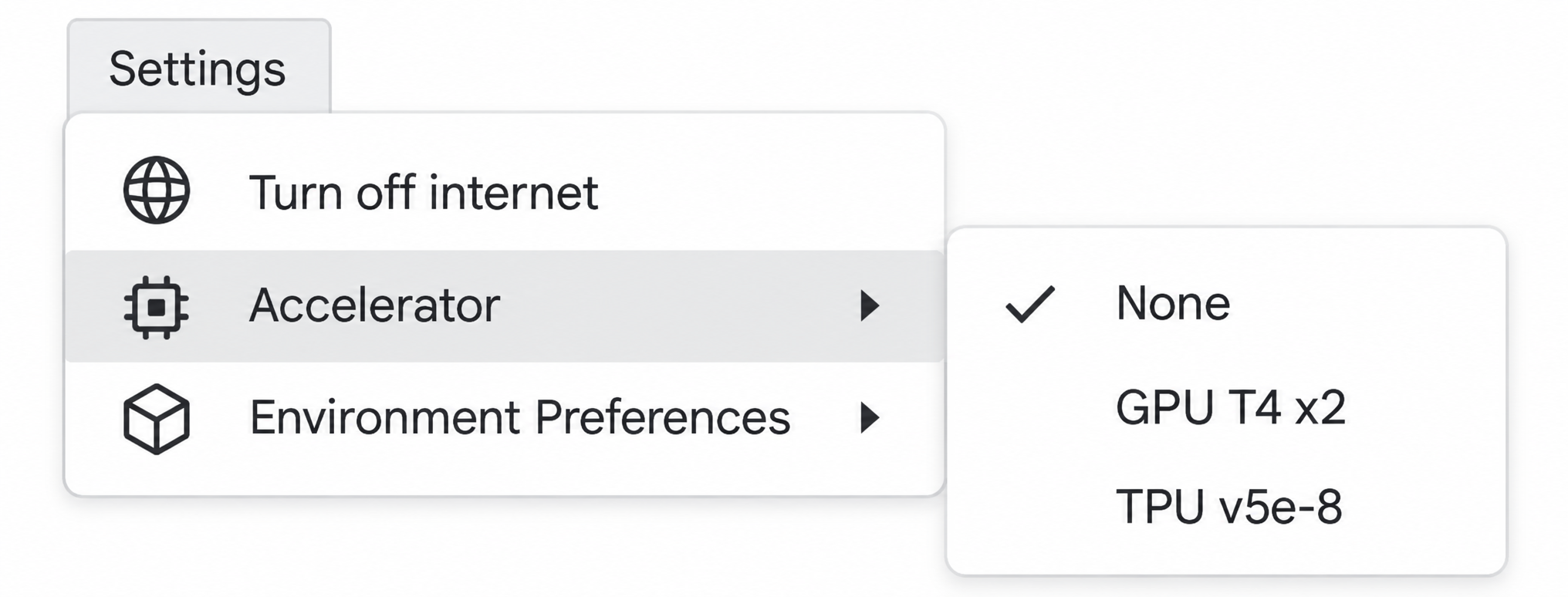
AI-enhanced illustration for readability, checked against our original screenshot. None remains selected; GPU T4 x2 and TPU v5e-8 are observed menu choices.
- Open Settings.
- Open Accelerator.
- Keep None for this CPU exercise; choose an eligible GPU only for code that needs it.
3. Run a cell and check its result
Replace the starter cell with the Python below. Click its triangular play button or Run current cell in the toolbar. Wait for the session to start and the cell to finish. You should see ‘FreeAIList example: average = 5.0’ and ‘Saved: /kaggle/working/freeailist-example.txt’ below the cell. We observed both lines in our CPU test.
The code averages four numbers and writes the result to a small text file. It uses Python’s standard library and makes no network requests. This checks the basic notebook workflow; it is not an AI training example or a GPU performance benchmark. For an AI project, first confirm its package, memory, dataset and model-license requirements separately.
Python starter code — paste into one code cell
from pathlib import Path

values = [2, 4, 6, 8]
average = sum(values) / len(values)
result = f"FreeAIList example: average = {average:.1f}"
print(result)

Path("/kaggle/working/freeailist-example.txt").write_text(result + "\n")
print("Saved: /kaggle/working/freeailist-example.txt")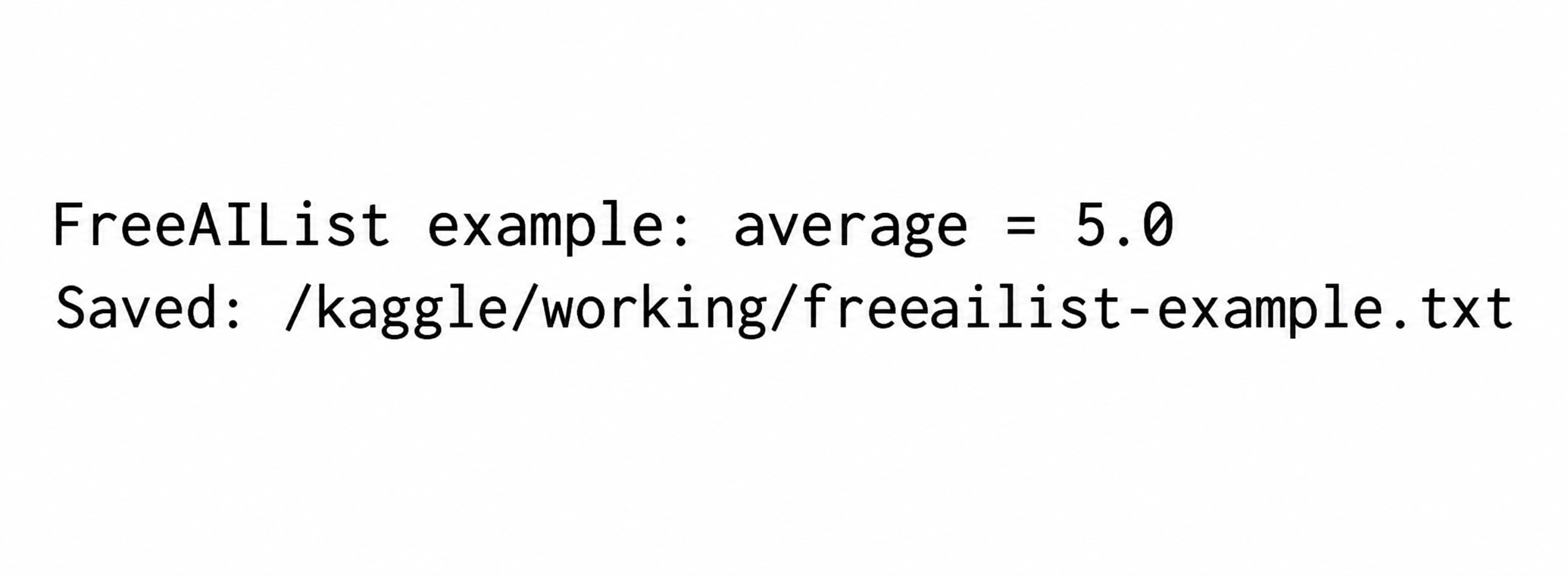
AI-enhanced illustration of the two output lines, checked against our original screenshot. Use the selectable Python above for the exact code; the original capture also shows the Run controls.
- Confirm the average is 5.0.
- Check the saved file path.
4. Save your work and choose whether to keep files
Select Save Version at the top right. The dialog defaults to Save & Run All (Commit), which starts a fresh top-to-bottom execution. For this already-run exercise, switch Version Type to Quick Save. It snapshots the notebook as it currently looks, so you do not need to rerun the code simply to save a version.
Open Advanced Settings and inspect Save Output. In our dialog it defaulted to ‘Never save output when creating a Quick Save’. To retain the generated text file, choose ‘Save output for this version when creating a Quick Save’ before selecting Save. Wait for completion. Our saved Version 1 completed with output enabled. The screenshot shows a later inspection of the default setting; that second dialog was canceled.
Writing a file to /kaggle/working during a session and preserving it in a saved version are different actions. Save or download files you need before ending the session. Use Save & Run All deliberately when you want to check that every cell works from a clean state; do not launch repeated background runs as a substitute for saving edits.
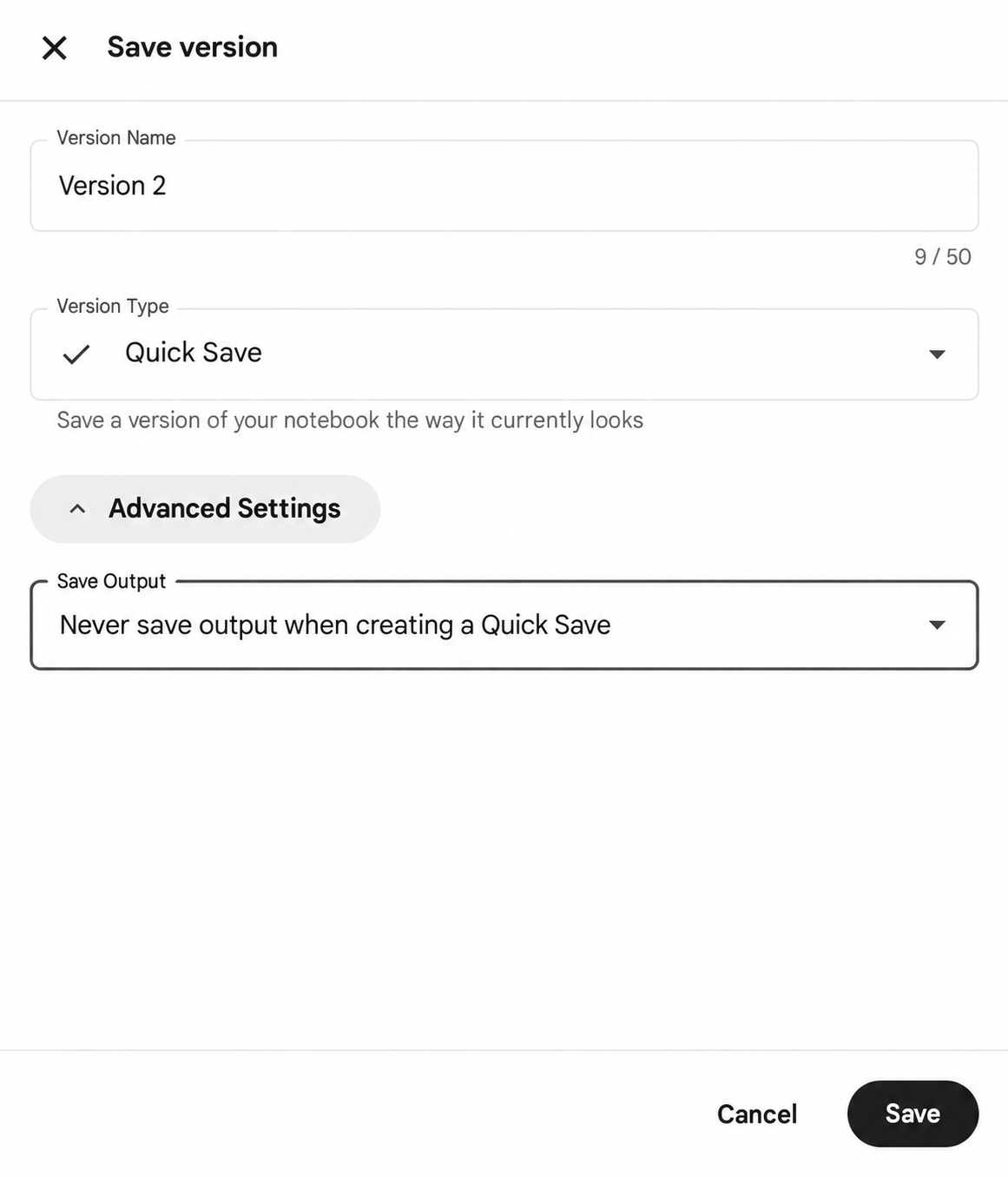
AI-enhanced illustration for readability, based on our original screenshot. Save Output shows its default; choose to save output for this version before saving. The inspected Version 2 dialog was canceled.
- Choose Quick Save under Version Type.
- Under Advanced Settings, choose Save output for this version when creating a Quick Save.
- Select Save and wait for the version to finish.
5. Stop the session before closing the tab
Once the version and any files you need are safely saved, open the three-dot More settings menu beside Draft Session and select Stop session. Check that Draft Session changes to ‘off (run a cell to start)’. We stopped this walkthrough’s session and confirmed that status. Interrupt execution only stops running code; use Stop session to shut down the session itself.
Closing the browser tab or restarting your laptop does not reliably stop a remote notebook. Kaggle’s efficient-usage guide specifically recommends stopping interactive sessions before closing the window. Check Active Events for work you intentionally left running, and stop only the session you mean to end.
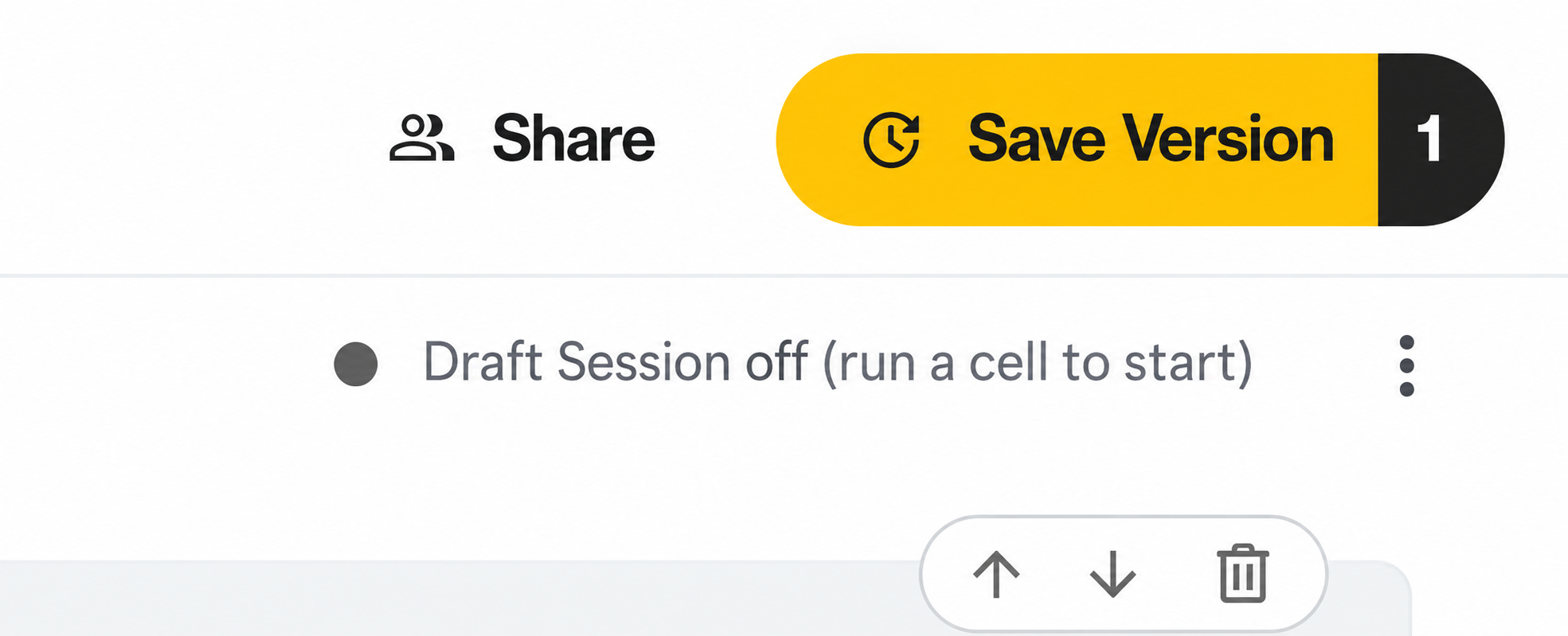
AI-enhanced illustration for readability, based on our original screenshot. After stopping our demo, Draft Session is off and the saved version count is 1. The menu is closed.
- Open the three-dot More settings menu and choose Stop session when your session is running.
- Confirm Draft Session says off (run a cell to start).
- The version has finished saving, and required files are preserved or downloaded.
- The correct notebook’s Draft Session says off.
- No unnecessary Save & Run All jobs were started for this exercise.
If something looks different or does not work
If GPU choices are unavailable, read the message shown in your account. Possible issues include verification, quota or resource availability. This test used an existing account; it does not establish that a new account can immediately start a GPU. Follow Kaggle’s own verification flow rather than entering payment details into an unrelated offer.
If the cell is queued or the session is starting, wait for its status to change before clicking Run again. If Python shows an error, compare the pasted code, quotation marks and file path with the example. A successful screenshot from our account is a reference, not a guarantee of a particular startup time for yours.
For longer projects, save checkpoints and important files deliberately. A draft, an interactive session and a saved version serve different purposes. Read the current runtime limits and your account’s remaining quota before leaving a training job unattended. We did not test long runs or train a model in this walkthrough.
Current Kaggle notebook documentation ↗When to choose Google Colab instead
Consider Colab if you prefer its notebook interface or already organize your work around Google Drive. It is another browser route for running Python and eligible accelerator workloads.
Colab’s free resources, hardware and usage limits vary. Switching does not guarantee a GPU or a fixed uninterrupted runtime. Compare the current restrictions and save your work whichever service you choose.
Official sources
These links support the important free-offer claims on this page.
- Kaggle free GPU quota and session management ↗
Kaggle documents free GPUs with a weekly quota of 30 hours or sometimes higher depending on demand and resources. Stop interactive sessions when finished; closing a browser does not immediately stop the GPU. Checked rendered public documentation; no notebook was run or stopped.
- Kaggle notebook accelerator and execution limits ↗
Hosted notebooks provide free GPU/TPU access subject to queues and availability. Documented maximum execution is 12 hours for CPU/GPU and 9 hours for TPU. Optional experimental Colab Pro quota is separate from baseline free access. No fresh accelerator allocation was tested.
- Kaggle staff: GPU phone verification (historical statement) ↗
Kaggle staff member Jim Plotts states that GPU access is restricted to phone-verified users. The rendered thread displays the statement as posted five years ago. Checked October 16, 2026 as supporting historical evidence; not a fresh signup test or proof of unchanged eligibility for every account.