
Is Hugging Face ZeroGPU free?
Shared GPU access for using and hosting supported Hugging Face Spaces.
Current free offer summary
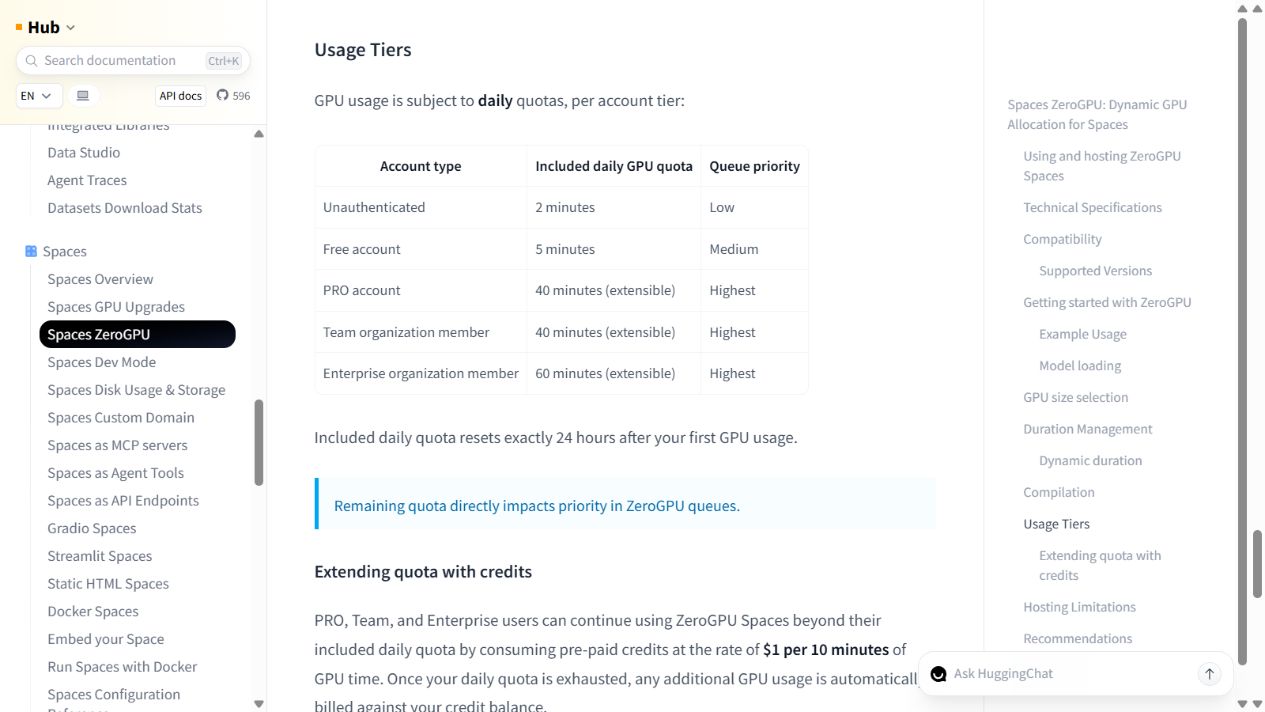
A free Hugging Face account receives 5 minutes of included ZeroGPU time per day; unauthenticated use receives 2 minutes, and the quota resets 24 hours after first GPU use.
What Hugging Face ZeroGPU does
Hugging Face ZeroGPU dynamically allocates shared NVIDIA GPUs to supported Gradio Spaces. Existing ZeroGPU apps can be used without payment, and account tiers receive documented daily GPU-time quotas with different queue priority.
- Shared GPU compute
- Gradio Spaces
- Space API endpoints
- Dynamic GPU allocation
Best for
- ✓ Trying public AI demos
- ✓ Hosting small Gradio demos
- ✓ Calling selected Spaces through an API
Important limits
- • GPU time is shared and queue priority depends on account tier
- • Free hosting is limited to two eligible ZeroGPU Spaces
- • ZeroGPU supports Gradio and selected Python and PyTorch versions
- • The daily quota is shared across ZeroGPU apps; xlarge GPU allocation consumes quota at twice the rate
- • Short GPU-backed app tasks, not a general-purpose GPU virtual machine
FreeAIList verdict
A useful way to try or host short GPU-backed demos without paying, as long as the small daily quota and shared queue are acceptable.
Paid plans: PRO and organization plans receive higher daily quotas and can extend usage with prepaid credits.
About this practical guide
Sources checked Oct 17, 2026
On October 17, 2026, we opened the Qwen/Qwen3-TTS Space from the directory linked in Hugging Face’s ZeroGPU documentation. Without signing in or adding a card, one original short request succeeded using TTS (CustomVoice), English, Ryan, 1.7B and a blank style instruction. The app reported success; its audio player reached the end at 5.816875 seconds. We inspected Download but a stalled browser transfer returned no saved file, so download completion is unverified. No voice recording, account, API token, paid credits, model training or hosted Space was created. Two real screenshots supply three focused views with added pointer reading aids. This guide check does not replace the listing’s full verification date.
Compare free compute workflows1. Open an app that actually uses ZeroGPU
Start with the directory linked from the official ZeroGPU documentation, or open the Qwen3-TTS demo used here. Check the owner and the Running on ZERO badge. A Hugging Face Space can use other hardware, so being on Hugging Face alone does not establish ZeroGPU access.
Open the badge to inspect the Space’s hardware status. Our anonymous session showed Log In or Create an account for higher queue priority. The displayed GPU count describes the shared Space, not a GPU reserved for you. We continued without signing in for this one short test.
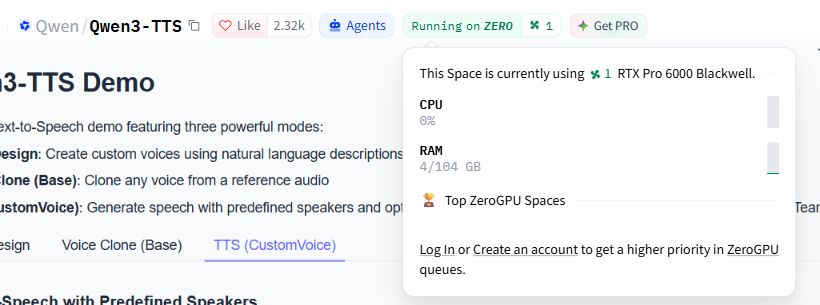
Actual badge inspection before our request. Space-wide GPU usage is not a personal allocation or remaining-quota counter.
- Inspect the Running on ZERO badge.
- Read the sign-in and queue-priority information; sign-in was unnecessary for our short test.
2. Choose a preset voice and keep the first request short
Choose TTS (CustomVoice). Paste the sentence below into Text to Synthesize. For the same setup as our test, select English, Ryan and Model Size 1.7B, and leave Style Instruction blank. This preset route requires no voice upload or reference recording.
Check the selected app and settings before submitting: each Space has its own interface, model and limits. The app’s published code maps this selection to Qwen3-TTS-12Hz-1.7B-CustomVoice and applies a 60-second maximum GPU function duration. That is a request limit, not a promise of a 60-second audio clip.
Original short sentence used in our test
Before using a free AI tool, check its usage limits and whether you can publish the result.
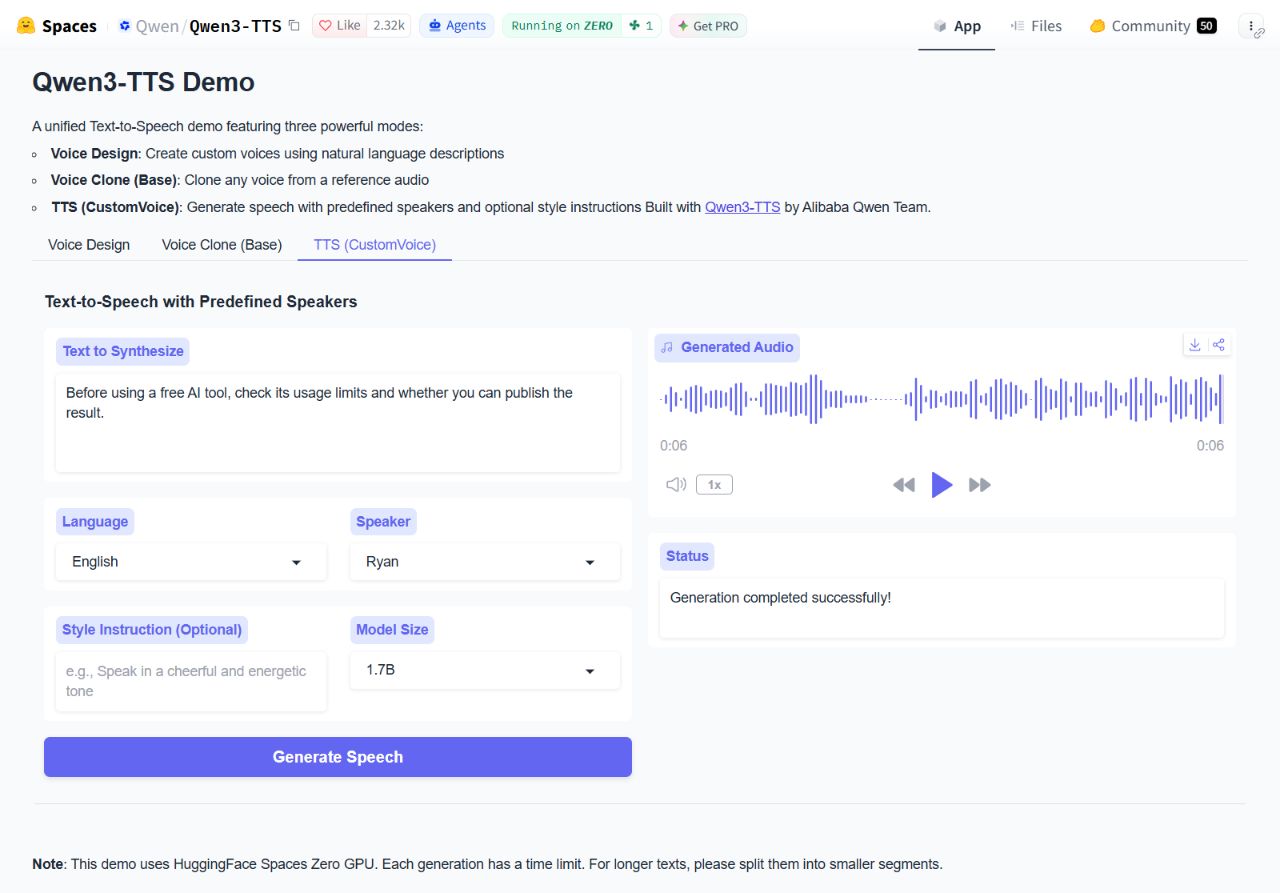
Settings from our completed run, cropped from the same real capture used for the result view below.
- Choose TTS (CustomVoice).
- Paste a short sentence and check the language, speaker and model size.
- Select Generate Speech once, then wait for the result or a clear error.
3. Check the result and save anything you need
Select Generate Speech once. Wait through any queue or processing message instead of repeatedly submitting. Our single request returned Generation completed successfully! and an audio player. Playback reached its 5.816875-second endpoint; the interface rounded this to 0:06. This confirms a working short request and playback, not a speech-quality benchmark or a long-form test.
Use Play to inspect your result, then the download-arrow control to save it if needed. Verify the actual file in your browser’s downloads before relying on it. Our browser transfer stalled and returned no saved file, so we cannot claim a completed download. The screenshot shows the available control, not proof that a file reached our computer.
ZeroGPU allocates GPU time around the app’s decorated function and releases it when the function finishes. We did not start a notebook or persistent Studio, so there was no personal runtime to reset. Keep results before leaving the app; do not assume a temporary player URL is permanent storage.
The result area of our completed request. The player reached the end; local download completion remains unverified.
- Play the result and inspect it before using it.
- Use Download, then check the actual saved file in your browser.
Understand the shared quota before trying another app
Hugging Face documents 2 minutes of daily GPU quota without an account and 5 minutes for a Free account, shared across ZeroGPU Spaces. The reset is 24 hours after first GPU use. The xlarge size consumes quota at twice the large rate. These are GPU-use budgets, not audio minutes, wall-clock queue time or a guarantee of immediate access.
Our interface did not expose a reliable before-and-after quota charge, so this test does not establish how much budget was consumed. Read the actual queue, quota or duration message if a request fails. Avoid retry loops or switching apps to try to escape a shared limit; use a shorter request or wait for the allowance to reset.
Official ZeroGPU quota and size rules ↗Using an app, hosting an app and training a model are different tasks
This walkthrough uses an existing app for inference. It does not demonstrate creating a Space or training a model. Current documentation allows eligible Free personal accounts in good standing, with verified email and an account older than 30 days, to host up to two ZeroGPU Spaces. Hosting eligibility and development setup were not tested here.
For notebook training, the separate Colab and Kaggle guides are a closer match. For outputs from a Space, check that app’s model license, usage terms and any input rights. Free compute alone does not establish commercial permission for every model or voice. Qwen’s linked model card identifies its model license, but this page does not apply it to all ZeroGPU apps.
Qwen’s CustomVoice model card and license ↗When to choose Google Colab instead
Choose Colab when you need a notebook to write and execute your own training code. Our guide includes a separate small PyTorch training run on a Tesla T4.
Colab’s free GPU availability and runtime limits vary. It is a different workflow from submitting a short request to somebody else’s ZeroGPU Space; neither route guarantees that your larger model will fit or finish.
Official sources
These links support the important free-offer claims on this page.
- ZeroGPU quotas, hosting eligibility and shared hardware ↗
Free accounts receive 5 GPU minutes per day and unauthenticated users 2; the quota resets 24 hours after first use and is shared across apps. xlarge allocation consumes quota at twice the rate. Free hosting allows up to two eligible Gradio Spaces; a verified email, account older than 30 days and good standing are required. The October 16 access review did not test a GPU job or hosting setup; a separate October 17 walkthrough tested one short app request.
- Hugging Face Spaces API endpoints ↗
Hugging Face documents that Gradio Spaces expose API endpoints and that ZeroGPU usage follows account-tier daily quotas.